Verifying a Zynyo digital signature
With a digital signature, there is no need to sign the document by hand. As proof, we generate a digital certificate of signature. We attach this to the document or provide it as a separate file. The document itself is sealed, ensuring it is (cryptographically) protected against alterations and forgery. This eliminates the need to initial each page. Below, you can read how to verify a digital signature.
Verify the digital signature(s) on the document
You can verify the digital signatures on the document by opening it in a PDF reader that can validate digital signatures. If you’re unsure whether your PDF reader supports this feature, use the free version of Adobe Acrobat Reader.
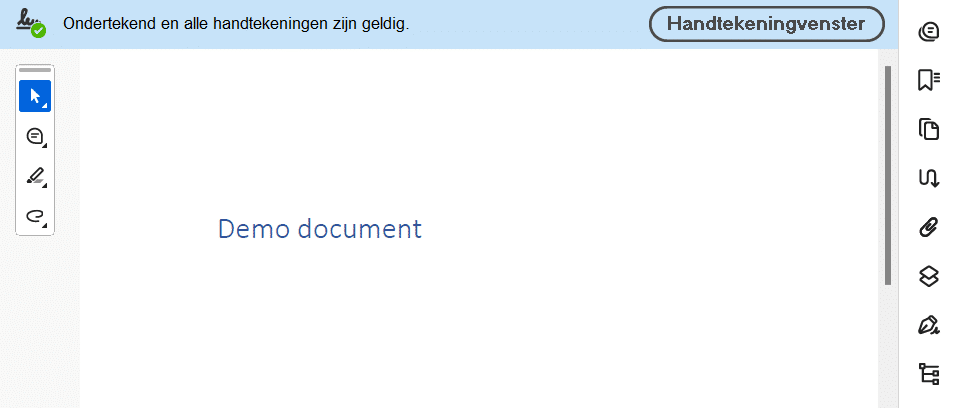
When you open the document, a bar will appear at the top indicating whether the signatures are valid. This bar also includes a button to open the signature window. If you don’t see the bar (for example, in PDF/A documents), you’ll see a button on the right side to open the signature window.
Signature box
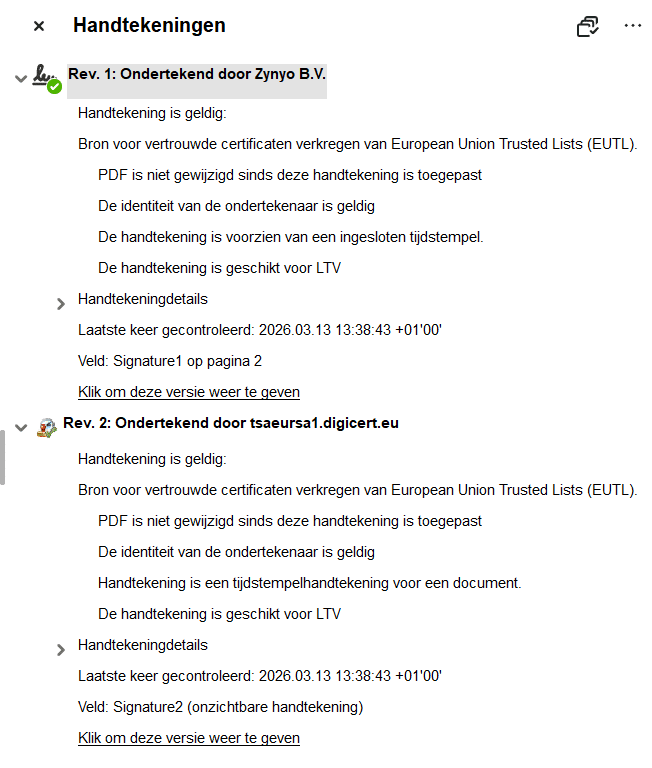
In the signature pane, you can see all the signatures on the document. If the document has been sealed by Zynyo, you will see the following signatures. In this example, the first signature is Zynyo’s seal, and the second is the qualified timestamp for archiving. A valid signature is marked as such. Is the validity unknown? If so, click the button (the image of three documents with a checkmark) in the top-right corner of the window. If the signature remains invalid, follow the steps in this help article about invalid digital signatures
Qualified signature
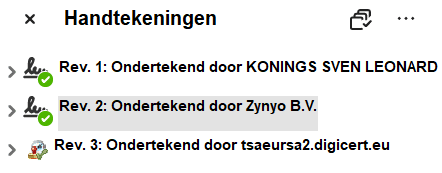
If the document has been digitally signed, you will also be able to view the signatories' personal signatures. Next to the Zynyo seal, you will see each signatory's signature along with their personal certificate.
Verify a signature in a different way
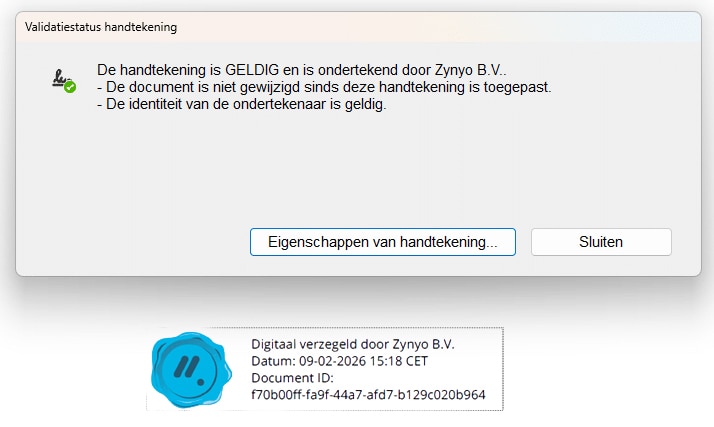
You can also verify the signature by clicking on the Zynyo seal. By default, this seal is located in the bottom-left corner. When you click on it, a pop-up will appear showing the validation status.
If you have opened the document in Adobe Acrobat Reader and the seal is not clickable, you may have an invalid copy that does not contain a digital seal.
Verify the signed document
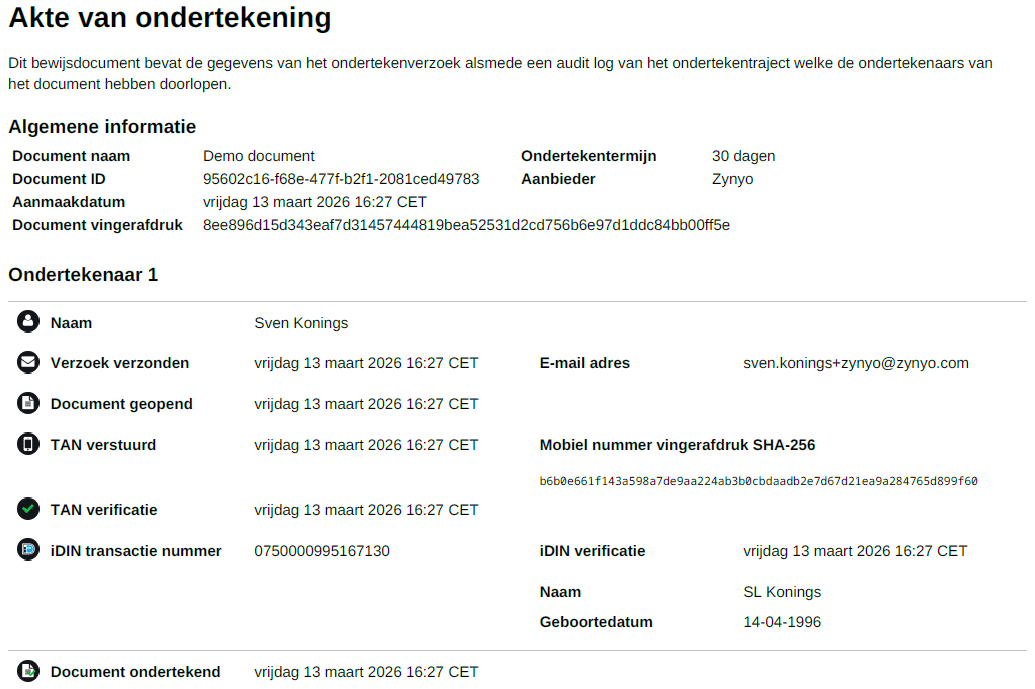
The signing record contains all the steps taken to sign the document. For non-qualified signatures, the record serves as proof of the signing process. It includes the signer’s details, as identified using the chosen means of identification. Important: Verify these details to ensure that the correct person has signed.
General Information
The general information section includes the following details:
- Document name – The name of the document being submitted.
- Document ID – The unique code of the document in Zynyo. For a split document, the code on the document must match the code in the seal of the signed document.
- Creation date – The date the signing request was sent.
- Document fingerprint (only for a separate certificate) – The fingerprint is a secondary method for verifying that the certificate belongs to a specific document. This can be done by generating an SHA-256 hash of the signed document and checking whether it matches the fingerprint on the certificate.
- Signing period – The maximum number of days until the signing request expires.
- Provider – Provider's account name
Signatories
For each signatory, you can see the steps taken to sign the document and when this occurred. If a signatory signed using an SMS TAN code, the document may show a fingerprint instead of the original mobile phone number. In that case, the phone number has been obscured. Read here to learn how to verify a fingerprint.